Day 5,6 and 7 tasks
Day 5 Task: Advanced Linux Shell Scripting for DevOps Engineers with User management.
Being a DevOps engineer we are told to create the directories day1...devops90.
Will we be pasting the commands mkdir day1, mkdir day2, mkdir day3..... till mkdir day90?
That's not our approach, lets's play smart here and create a script.
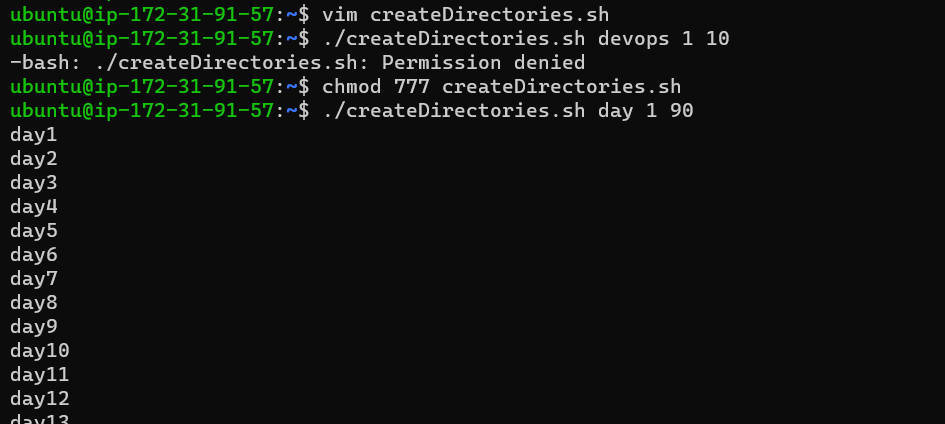
In this scenario, if I execute ./create_directories day 1 90, it should give me 90 day directories created like day1, day2......day90
Check out what the code will look like.
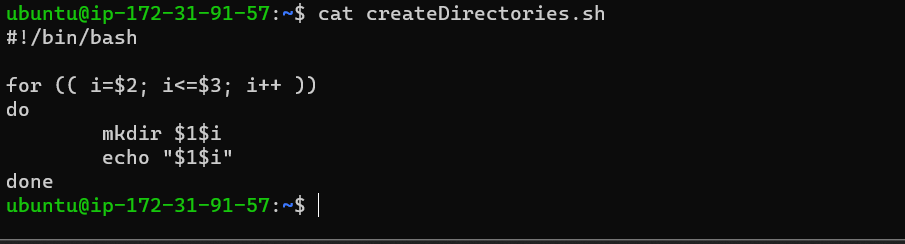
Here, $1 represents the first argument i.e day
$2 represents the second argument i.e 1
$3 represents the third argument i.e 90
And let's put this together in for loop where the value of i will start from the second argument i.e 1(i=$2) and will go on incrementing (i++) till its value is smaller than or equal to argument 3 which is 90 (i<=$3).
Under the do, we have executed the mkdir command which will create the directory by taking the value of the first argument hence $1.
echo is used to print the same.
Let's execute the above script :
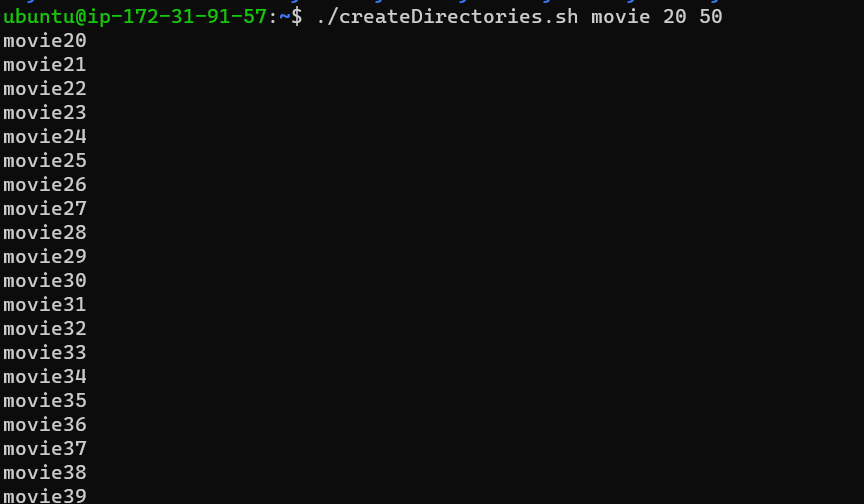
Example 2: When the script is executed as
./createDirectories.sh Movie 20 50 then it creates 50 directories as Movie20 Movie21 Movie23 ...Movie50
Create a Script to backup all your work done till now.
Imagine you are preparing all these scripts and data, what if it gets deleted?
lets's create one more script to keep the backup of all our data.
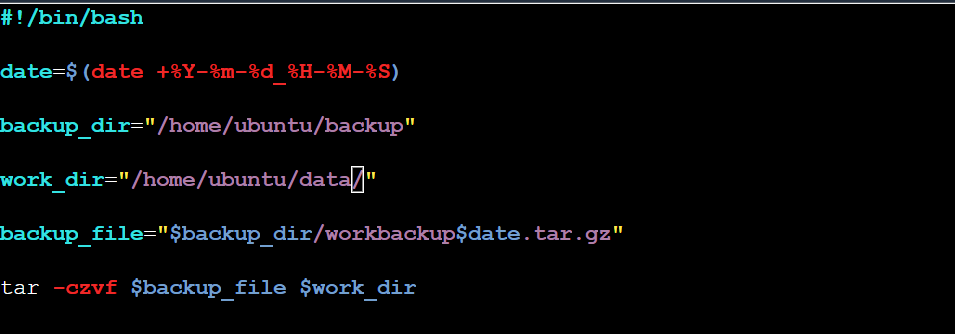
Let's break down the above code:
date: It takes the current date and time
backup_dir: the path of your backup directory where you want to keep all the backup data.
work_dir: the path of your working directory or data directory of which you want to take the back.
backup_file: Name given to the backed-up files.
tar -czvf*:* This is the command used to create the backup.
Let's create a script as a backup.sh with the above commands and execute.
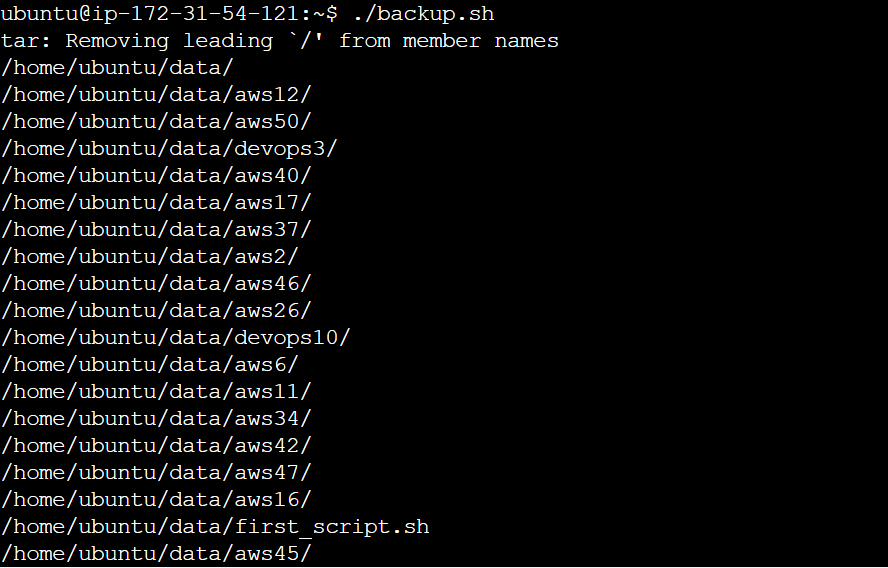

As you all can see the backup of all the contents under the data directory is being taken into tar.gz with a time stamp.
But everytime we cannot execute this command manually, what if it's missed on a day, the whole backup of that day will be missed.
We can automate the same task with the very cool feature known as crontab.
Crontab helps in scheduling things at our convenience.
How to automate the above backup.sh script using cron tab? It's easy.
Open the crontab using the crontab -e command, which will look like the one below.
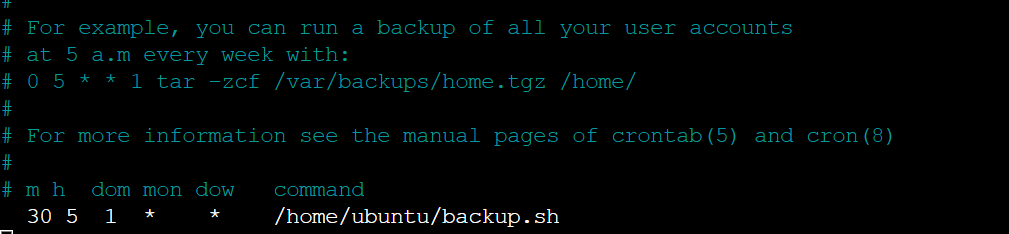
Towards the bottom, I had given something like 30 5 1 and a command /home/ubuntu/backup.sh
Let's decode this:
30*:* represent minutes i.e m
5: represent hour i.e h
1: represent the day of the month i.e dom
*: represent month i.e mon
*: represent the day of the week i.e dow
command: type the command that needs to be executed along with the path, here it's /home/ubuntu/backup.sh
So the above script will execute every 30 min of every 5th hour on date 1st of every month, whichever day of the week comes.
Creating the user :
sudo useradd <username>: This command is used to create the user
sudo passwd <username>: This command is used to set the password for the user name.

To list or see how many users are present
sudo cat /etc/passwd: This command lists every user's details

I hope this blog has helped you all to move towards the automation approach.
Day 6 Task: File Permissions and Access Control Lists:
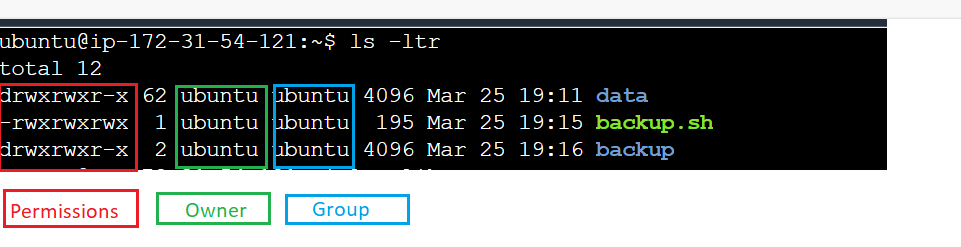
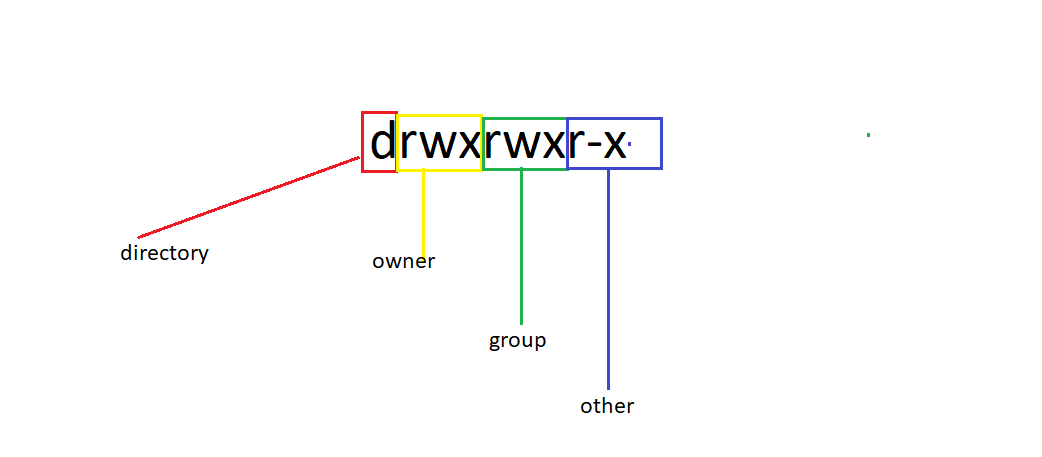
From the above image, the first red block denotes the permissions, the green block is the owner of that file or directory and the blue block represents the group to which the owner belongs.
Let's break it down further:
Permission :
drwxrwxr-x: From the above example this represents the permission of the directory data.
How to determine if it's a directory or a file?
The first character 'd' represents the directory, if its a file it is denoted by '-'
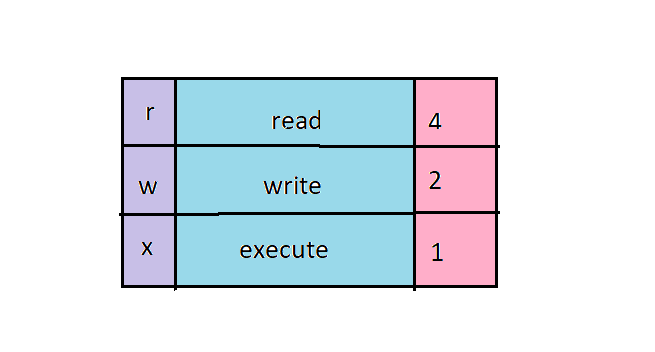
From the above two images, we can say that
Owner has read-write-execute (rwx) permission (4+2+1=7)
Group has read-write-execute (rwx) permission (4+2+1=7)
Other has read-execute permission (4+1=5)
So the overall permission of the directory 'data' is 775
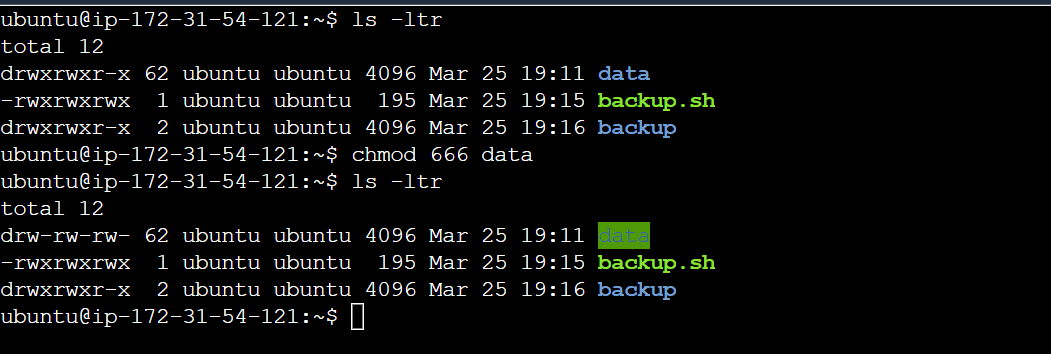
What if, we want to change the permission for the directory and give only read and write permission and remove execute permission?
chmod <permission> <filename/directoryname>
Command in our case will be: chmod 666 data
chown: Command is used to change the owner permission of file/directory
chgrp: Command is used to change the group permission of file/directory
Access Control Lists(ACL):
ACL is a more advanced and extended permission mechanism of the filesystem in Linux.
The basic permission commands like chmod, chowder,chgrp are not flexible enough and have their limitations.
For example we cannot give diffent permission to different users for the same file or directory.
ACL provides us the flexibility to achieve the same.
Let’s say, you have three users, ‘user1‘, ‘user2‘ and ‘user3‘. Each has a common group say ‘DevOps’. User ‘user1‘ want only the ‘user2‘ user can read and access files owned by ‘user1‘ and no one else should have any access to that.
This can be achieved by ACL.
Install the ACL package using: sudo apt-get install -y acl
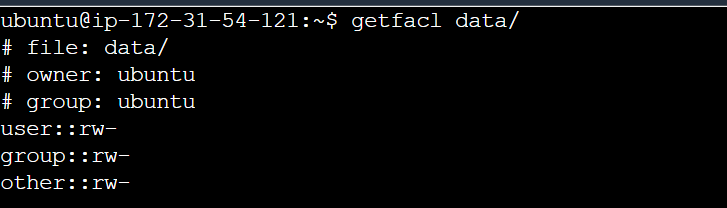
We have two commands setfacl and getfacl to achieve the permissions and control.
setfacl refers to the set file control access list.
getfacl refers to get file control access list.
Day 7 Task: Understanding package manager and systemctl
What is Package Manager?
We can call a package manager a software tool that helps us in installing, upgrading, and removing packages (in windows terminology we call packages applications) in Linux System.
It allows users to manage software dependencies, track installed packages, and make sure that all software components are compatible with each other.
How does Package Manager work?
Package managers connect themselves to the repository that has a collection of software packages.
The package manager downloads and installs software packages from the repository onto the local Linux system, hence resolving the dependencies, and configuring the software for use.
Examples of popular package managers in Linux include:
apt-get (Advanced Packaging Tool) used in Debian and Ubuntu distributions.
yum (Yellowdog Updater Modified) used in Red Hat, CentOS, and Fedora distributions.
Pacman is used in Arch Linux.
the zipper used in openSUSE.
DNF (Dandified Yum) is used in newer versions of Fedora and CentOS.
Advantages of Package Manager :
Package manager in Linux makes has made users' life easier to manage software installations and updates,
It has reduced the risk of conflicts between software packages.
It has simplified the process of maintaining a Linux system.
In this article, we will learn to install packages like Jenkins and docker into our Linux System.
Installing Docker:
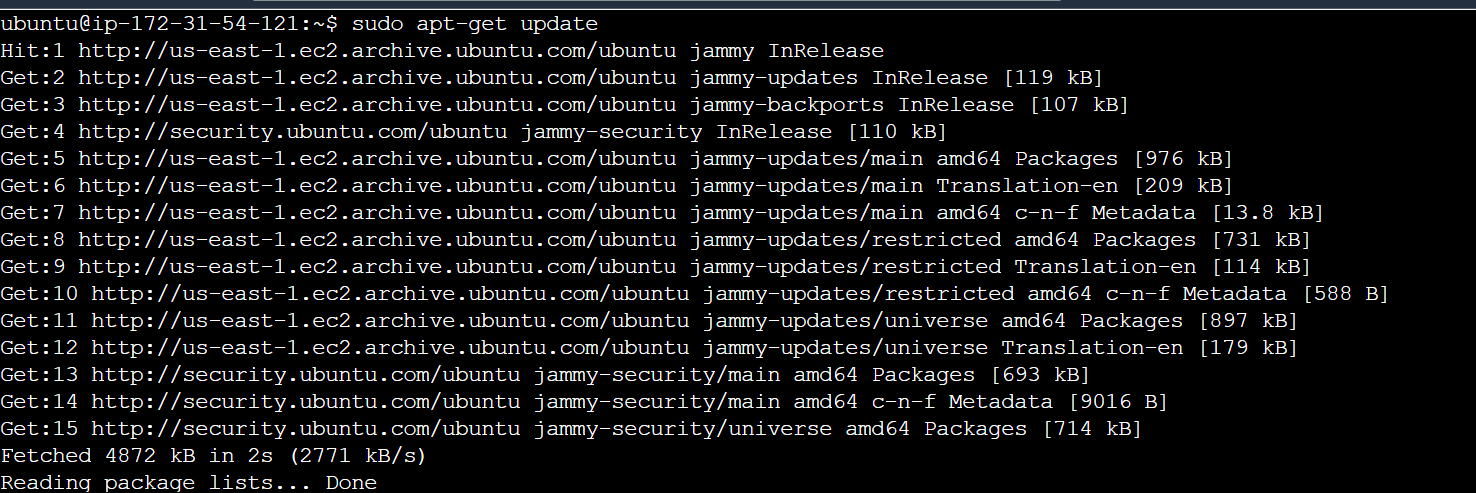
- Check if the system is up-to-date using the following command:
sudo apt-get update
- Install Docker using the following command:
sudo apt install docker.io
You’ll then get a prompt asking you to choose between y/n - choose y
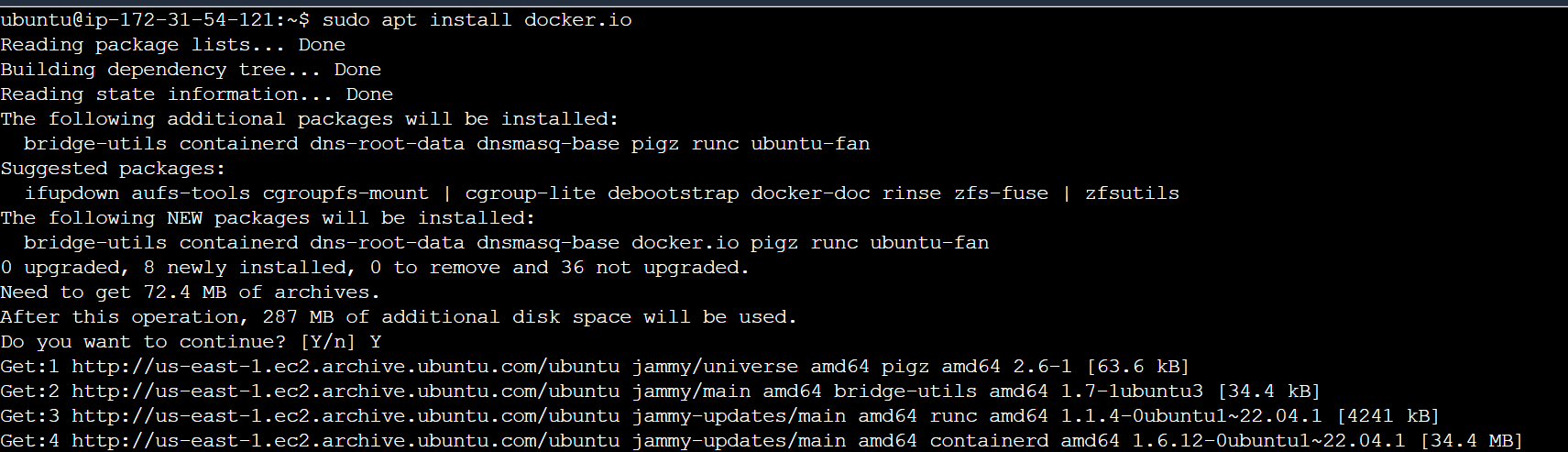
- Check if docker is installed
docker --version

Installing Jenkins:
1) Jenkins requires the Java Runtime Environment (JRE).
Check if JAVA is already present
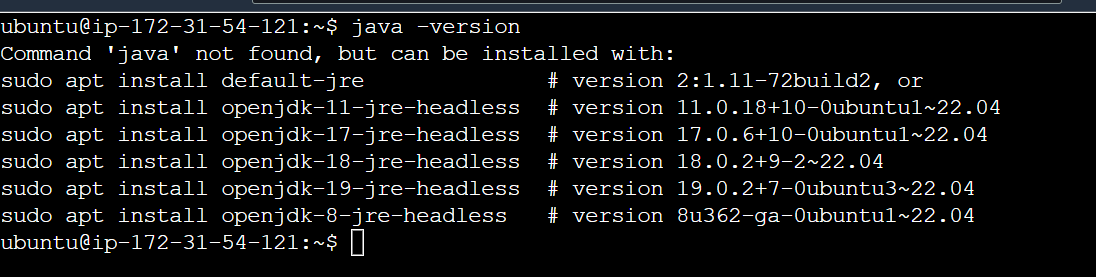
Since Java is not installed on our system, we will install it using OpenJDK.
Update the package repository:
sudo apt update
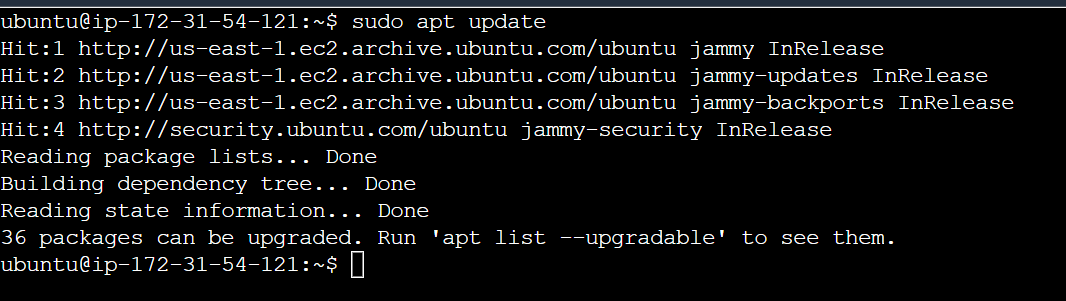
Depending on which Java version you want to install, Java 8 or 11, run one of the commands
To install OpenJDK 11, run :
sudo apt install openjdk-11-jdk -y
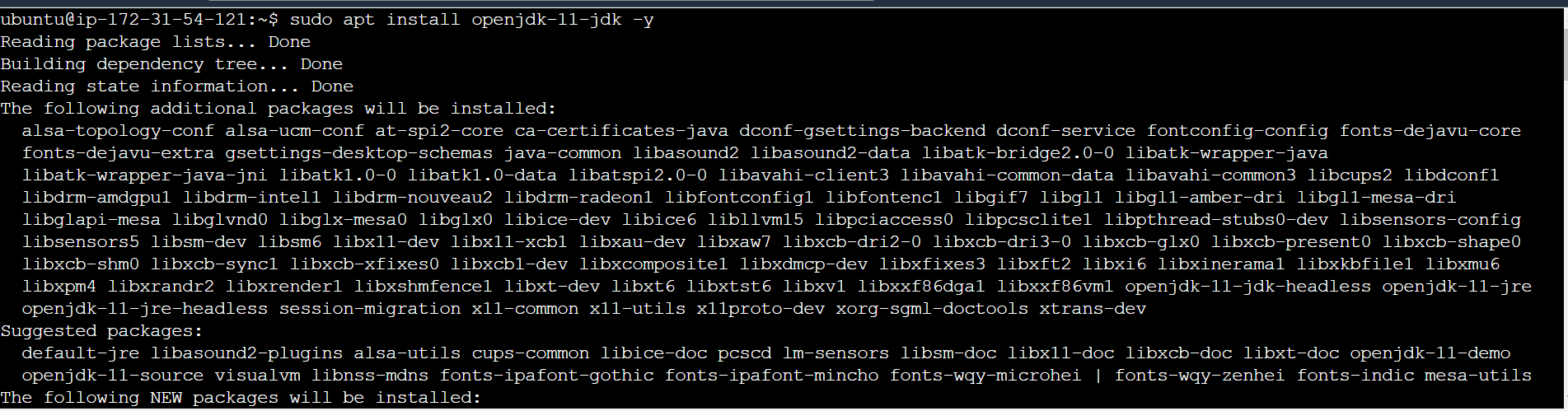
As you can see JAVA is installed:

- Add Jenkins Repository:
a) Start by importing the GPG key. The GPG key verifies package integrity but there is no output.
curl -fsSL pkg.jenkins.io/debian-stable/jenkins.io.key | sudo tee /usr/share/keyrings/jenkins-keyring.asc > /dev/null
b) Add the Jenkins software repository to the source list and provide the authentication key:
echo deb [signed-by=/usr/share/keyrings/jenkins-keyring.asc] pkg.jenkins.io/debian-stable binary/ | sudo tee /etc/apt/sources.list.d/Jenkins.list > /dev/null

- Update the system repository one more time:
sudo apt update
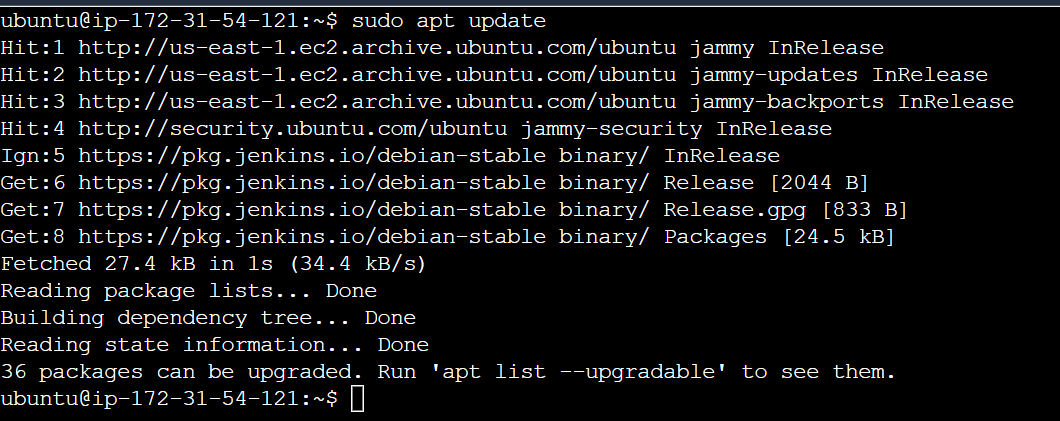
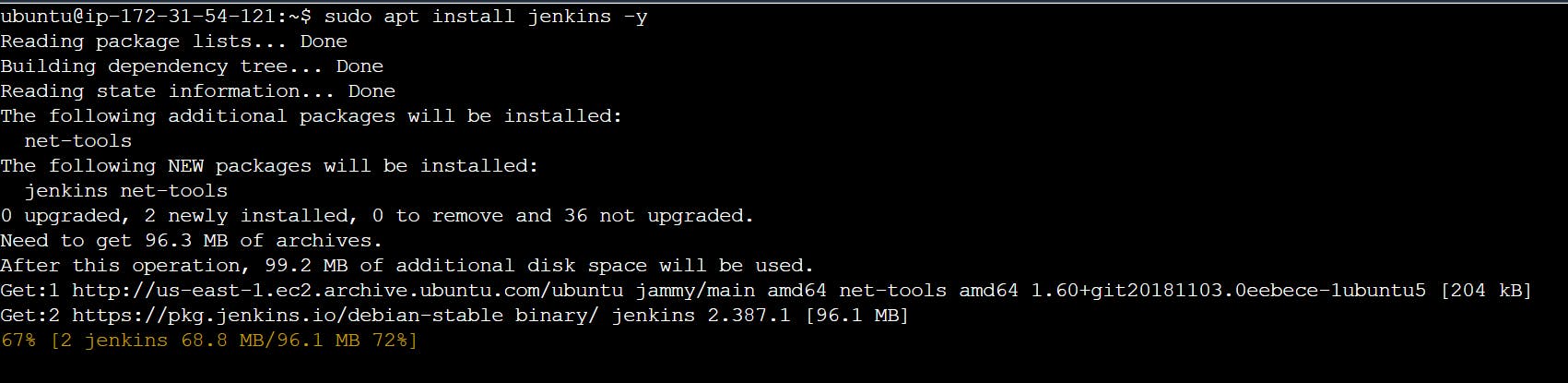
Install Jenkins by running:
sudo apt install Jenkins -y
What are systemctl and systemd ?
systemctl command is used to check the status of the system.
systemd is a system and service manager for Linux operating systems. It is a replacement for the traditional init system used in many Linux distributions. systemd is responsible for controlling the startup and shutdown of the operating system and managing system services.
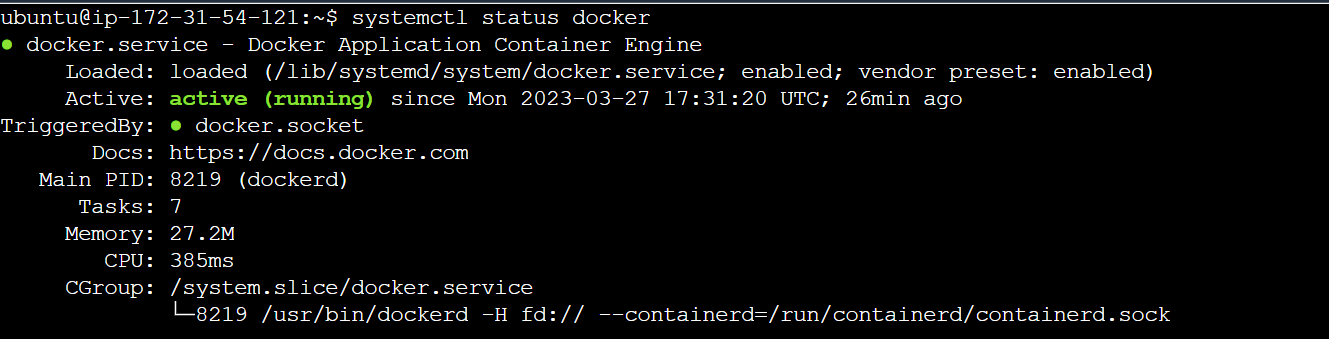
How to check if the Jenkins, and Docker services are running?
Use command :
systemctl status docker
systemctl status Jenkins

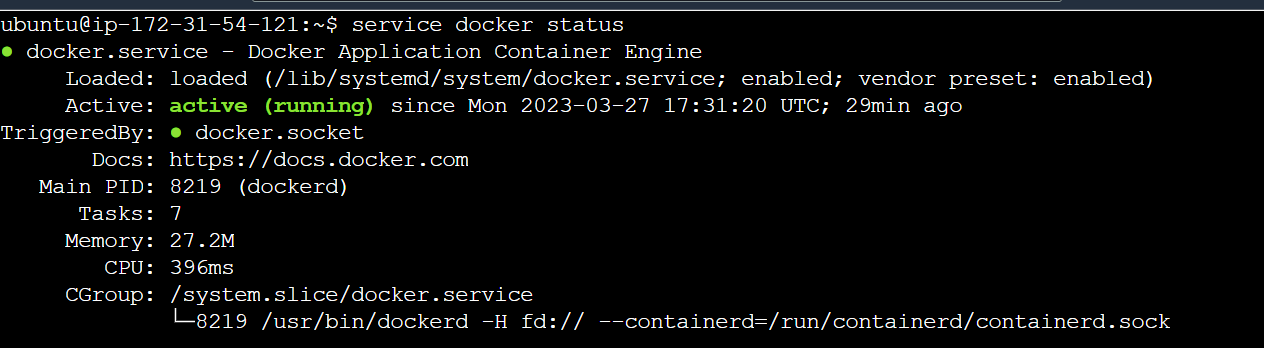
service <servicename> status: This command is also used to check the status of the service.
service docker status
The difference between systemctl and service command
systemctl status is a command used to check the status of a service managed by the systemd system and service manager.
service status, on the other hand, is a command used to check the status of a service managed by the traditional SysVinit system
systemctl in short is the more powerful version of the service.
With service, we use basic operations like status, restart, and reload.
Whereas systemctl can use more advanced commands for example:
systemctl is-failed name. service # check if service failed to load